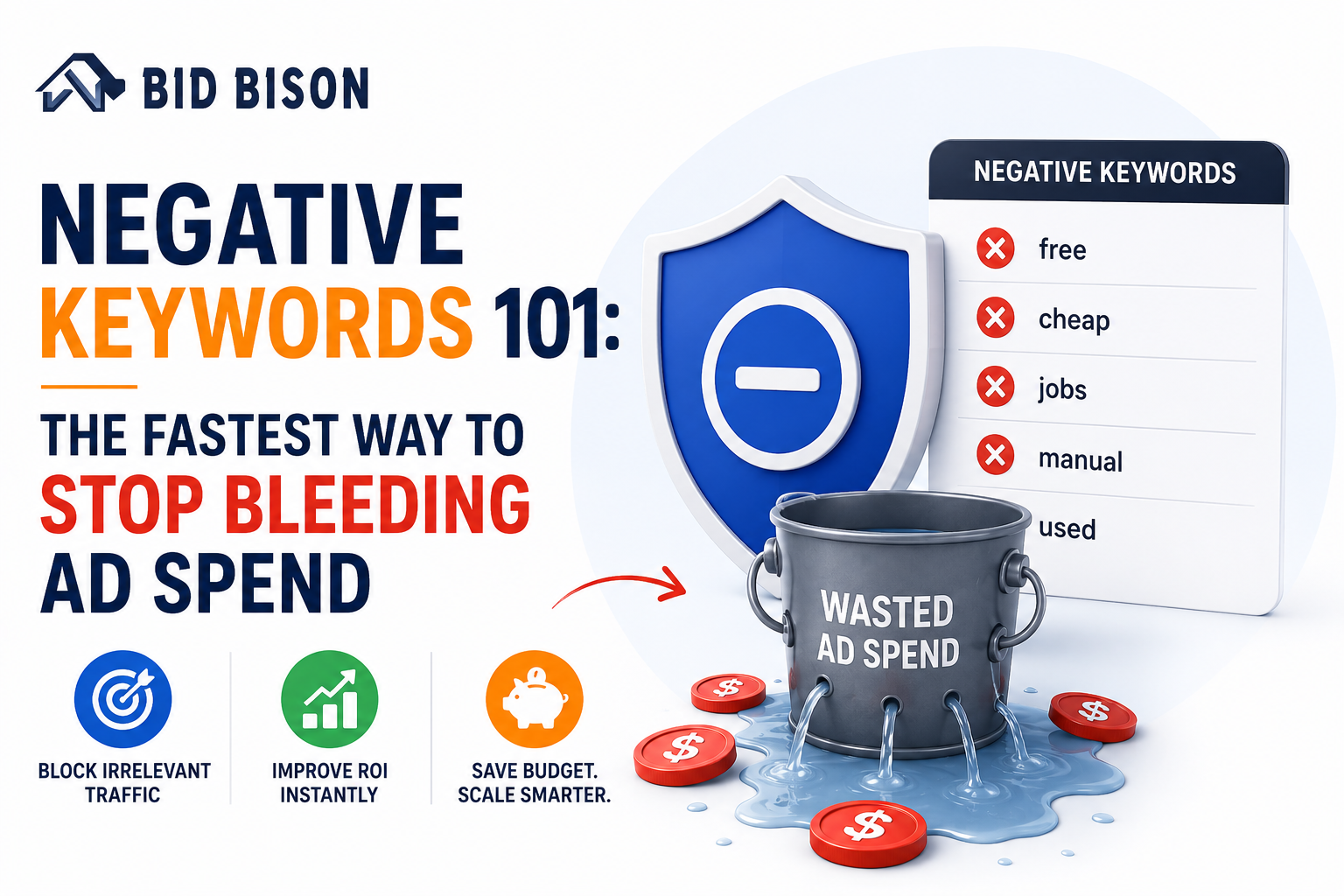
Negative Keywords 101: The Fastest Way to Stop Bleeding Ad Spend
Negative keywords are the cheapest fix in Amazon PPC. Here is how to find them, which match type to use, and how to stop the review from slipping down your to-do list.
Log into your Amazon Ads dashboard on a random Tuesday and you might see it: ACoS creeping up, spending climbing, but sales staying flat. You didn't change your bids. You didn't add new campaigns. So what happened?
Chances are, your ads are showing up for searches that have nothing to do with what you sell - and Amazon shoppers are clicking, browsing, and leaving without buying. Multiply that across a few hundred clicks a month, and you've got a slow, quiet leak in your budget.
The good news is that this is one of the easiest problems to fix in all of Amazon PPC. Negative keywords let you tell Amazon exactly which searches should never trigger your ads, and for most sellers, cleaning these up produces a visible drop in wasted spend within days, not months.
In this guide, we'll cover what negative keywords actually are, how to find them, the mistakes that trip up even experienced sellers, and how Amazon PPC software can turn this from a recurring chore into something that runs quietly in the background.
What are negative keywords (and why they matter for US sellers)
Negative keywords are search terms you tell Amazon to exclude from triggering your ads. Think of your regular keywords as inviting shoppers in, and negative keywords as a bouncer at the door, keeping out the traffic that was never going to buy anyway.
Here's a simple example. Say you sell stainless steel water bottles. You're bidding on broad match terms to capture as much relevant traffic as possible, which is smart. But broad match also means your ad might show up for "plastic water bottles for kids" or "water bottle with straw for toddlers" - searches from shoppers who have already decided what they want, and it isn't your product. Every click you get from that search costs you money and almost never converts.
This matters more in the US market than it used to. Cost-per-click has climbed steadily across competitive categories like home goods, supplements, and electronics, so a click that goes nowhere isn't just a minor inefficiency anymore. It's real money leaving your account with nothing to show for it.
The real cost of ignoring negative keywords
How wasted spend quietly erodes margins
The tricky part about wasted ad spend is that it rarely shows up as one big obvious mistake. It's usually death by a thousand small clicks: a dollar here, three dollars there, spread across dozens of irrelevant search terms. Individually, none of them look alarming. Added up over a month, they can account for a meaningful chunk of your total ad budget.
A realistic before-and-after scenario
Picture a seller running a $50-a-day Sponsored Products campaign - about $1,500 a month. If 20% of that spend is going to irrelevant search terms that never convert, that's $300 a month, or $3,600 a year, spent on clicks that were never going to become customers. For a seller running multiple campaigns across multiple ASINs, that number multiplies fast.
Trim that waste with a solid negative keyword list, and that same $1,500 budget starts working almost entirely in your favor, often lowering ACoS without ever touching your bids.
Why manual reviews often miss the bleed
Most sellers know they should check their search term reports regularly. In practice, life gets busy, and "regularly" turns into "once a month" or "whenever ACoS looks bad." By the time the problem is noticed, weeks of budget have already gone to the same handful of irrelevant terms.
Negative keyword match types explained
Amazon offers two negative match types, and understanding the difference is essential before you start adding negatives.
Negative exact
This blocks a search term only when it matches exactly, word for word. If you add "water bottle for kids" as a negative, your ad won't show for that exact phrase, but it could still show for "kids water bottle" or "water bottle for kids school."
Negative phrase
This blocks any search that contains your negative phrase in the same order, even with extra words added before or after. Adding "for kids" as a negative phrase would block "water bottle for kids," "cheap water bottle for kids," and "water bottle for kids blue," but not "kids water bottle."
When to use which
As a rule of thumb: use negative phrase when you want to block a concept broadly (like "for kids" or "toddler"), and use negative exact when you want to block one very specific search without accidentally excluding nearby variations that might still convert. When in doubt, start narrower with negative exact - it's easier to expand later than to walk back a phrase match that blocked something valuable.
How to find negative keywords: a step-by-step manual process
Pulling the search term report
Start in the Amazon Ads console under Reporting, and pull a Search Term Report for your campaigns, ideally over a 30-to-60-day window so you have enough data to work with.
Identifying irrelevant, high-spend, zero-conversion terms
Sort by spend, then scan for search terms that have racked up clicks and spend but zero (or very few) conversions. Not every zero-conversion term is a bad one - some just need more data - but terms that are clearly unrelated to your product are easy to spot and safe to cut immediately.
Setting thresholds
A common approach is to flag any search term with more than 10-15 clicks and zero sales as a candidate for negation, adjusting the threshold based on your average conversion rate and price point. Lower-priced products can tolerate a higher click threshold before a term is truly "underperforming."
Adding negatives at the right level
You can add negative keywords at the campaign level or the ad group level. Campaign-level negatives apply more broadly and are useful for terms you never want to show for across an entire campaign. Ad-group-level negatives are more surgical, useful when a term might be fine in one ad group but irrelevant in another.
Common negative keyword mistakes US sellers make
Being too aggressive
It's tempting to negate anything that hasn't converted yet, but new search terms often need a little runway before they prove themselves. Cutting too fast can quietly block terms that would have converted with a bit more data.
Ignoring match type nuance
Adding a broad concept as negative exact when you meant negative phrase (or vice versa) is one of the most common errors. It either blocks too little, letting waste continue, or blocks too much, cutting off traffic that was actually converting.
Set-and-forget syndrome
A negative keyword list built once and never revisited becomes outdated fast, especially as your catalog changes or seasonality shifts.
This is particularly relevant for US sellers around holiday periods. Terms like "Christmas gift," "Black Friday deal," or "stocking stuffer" might be perfectly relevant in November and completely irrelevant and wasteful by mid-January. Sellers who forget to revisit and prune these seasonal terms often keep bleeding spend on searches that made sense for a six-week window and nowhere else.
Why manual negative keyword management doesn't scale
Here's the honest math: if you're running a handful of campaigns for one or two products, a monthly manual review is manageable. But most growing sellers aren't in that position for long.
Once you're managing 10+ ASINs, running campaigns across multiple marketplaces, or handling PPC for several client accounts as an agency, the search term data multiplies fast. Reviewing it thoroughly every week - which is what actually catches waste early - becomes a part-time job on its own.
For private label brands scaling their catalog, aggregators managing dozens of acquired listings, and agencies juggling multiple US-based client accounts, the opportunity cost of manual review starts to outweigh the cost of a tool that does it automatically.
How Amazon PPC automation software fixes this
What to look for in an Amazon PPC management tool
Not all Amazon PPC software is built the same. When evaluating options, look for a few core capabilities:
- Automated search term harvesting - the tool continuously pulls and analyzes search term data, rather than requiring you to export and review manually
- Rule-based or data-driven negative keyword suggestions - flagging underperforming terms based on thresholds you can customize
- Bulk actions across campaigns and accounts - so you're not adding negatives one campaign at a time
- Clear visibility into what's being negated and why - automation should never feel like a black box
How BidBison approaches negative keyword automation
BidBison is one option built specifically around this kind of ongoing search term monitoring. Rather than requiring a seller to manually pull reports and eyeball spreadsheets each week, it continuously scans search term performance and flags terms that are draining spend without converting, so negatives can be added in bulk rather than one at a time.
For sellers managing several campaigns or accounts, this kind of automation doesn't replace strategic decision-making, it just removes the repetitive, error-prone part of the process, so more time goes toward bidding strategy and less toward spreadsheet cleanup.
Manual vs. software-driven negative keyword management
| Manual review | Amazon PPC software | |
|---|---|---|
| Time required | Hours weekly, more as catalog grows | Minutes to review flagged suggestions |
| Consistency | Easy to fall behind or skip weeks | Runs continuously in the background |
| Error margin | Higher - human fatigue, missed patterns | Lower - rule-based, repeatable logic |
| Scalability | Breaks down past a handful of campaigns | Scales across accounts and catalogs |
| Cost of delay | Wasted spend accumulates unnoticed | Waste flagged and addressed faster |
Neither approach is "wrong." Sellers running one or two lean campaigns may do just fine manually for a while. The shift toward an Amazon PPC management tool usually happens naturally, once the manual version starts eating more time than it's worth.
Getting started: a simple weekly negative keyword workflow
DIY checklist for sellers not ready to buy software
- Pull your search term report weekly, not monthly
- Sort by spend and flag zero-conversion terms above your click threshold
- Double-check match type before adding each negative
- Review seasonal terms right after major shopping events (Prime Day, Black Friday, holiday season)
- Keep a running log of what you've negated and why, so you can spot patterns over time
When it's time to consider buying Amazon PPC automation software
If you're spending more than an hour or two a week on this process, managing more than a handful of campaigns, or simply noticing that negative keyword reviews keep slipping down your to-do list, that's usually the signal that it's worth looking into Amazon PPC automation software. The manual checklist above works, but it only works if it actually gets done consistently.
Final thoughts
Negative keywords aren't glamorous. They won't get you a viral case study or a dramatic before-and-after screenshot. What they will do is quietly stop money from leaking out of your ad budget, week after week, without requiring you to touch your bids or restructure your campaigns.
Start with the manual checklist above if you're just getting started. But if you're already managing multiple campaigns and finding that weekly reviews keep slipping, it's worth looking at how Amazon PPC software like BidBison can take this off your plate - a PPC waste audit is the quickest way to see how much is currently leaking.
What's the difference between negative keywords and negative ASINs?
How often should I update my negative keyword list?
Can adding too many negative keywords hurt my campaign?
Do negative keywords work the same way in Sponsored Products vs. Sponsored Brands?
Is negative keyword automation worth it for smaller sellers, or only large catalogs?
How does BidBison help automate negative keyword management?
Stop the leak without the weekly spreadsheet.
BidBison watches search term performance continuously and flags the terms draining your budget.