How to Run Amazon Ads from Seller Central: Step-by-Step Setup Guide
Eight steps from eligibility to optimization, plus the point where manual campaign management stops scaling.
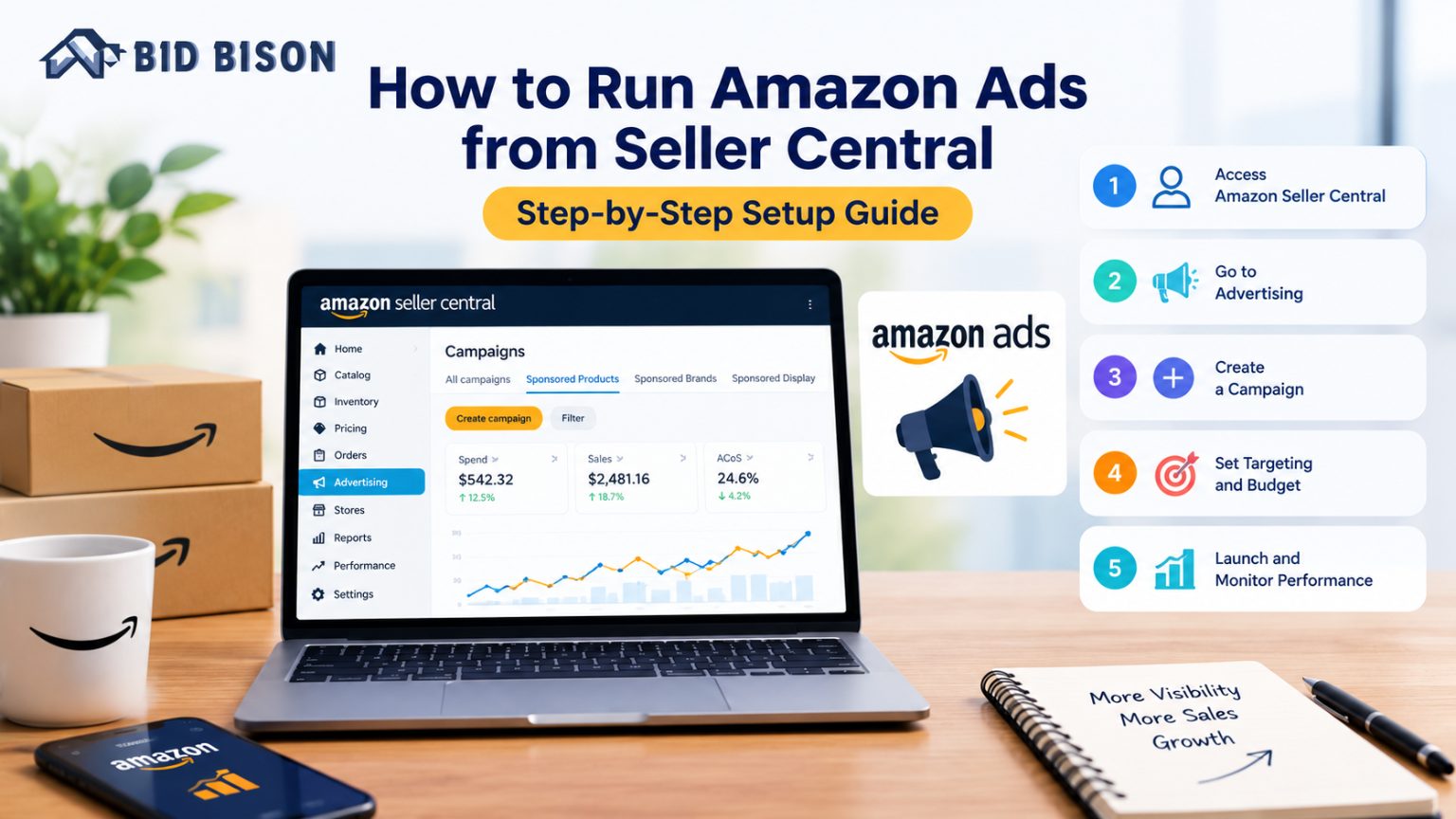
Running ads on Amazon is no longer optional for most sellers. With millions of products competing for the same shoppers, organic ranking alone rarely delivers consistent sales. The good news is that you can launch your first campaign directly inside Amazon Seller Central, without any outside tools.
This Amazon advertising guide walks you through the full process, from checking eligibility to choosing campaign types, setting budgets, picking keywords, and optimizing results. You will also learn where manual work starts to break down and how Amazon PPC software can help.
Quick Answer: How Do You Run Amazon Ads from Seller Central?
To run Amazon ads from Seller Central, log in, open the Advertising menu, and select Campaign Manager. Click Create campaign, choose a campaign type (usually Sponsored Products), select the products to promote, set a daily budget and targeting method, then launch. Amazon begins showing your ads once the campaign is approved, usually within a few hours.
The rest of this guide explains each step in detail.
What Are Amazon Ads in Seller Central?
Amazon ads are pay-per-click (PPC) advertisements that appear in search results, on product detail pages, and elsewhere across Amazon. You only pay when a shopper clicks your ad. Seller Central gives you a built-in dashboard, Campaign Manager, where you create campaigns, set budgets, track performance, and adjust bids.
For most sellers, the main reasons to advertise are:
- Faster visibility for new product launches
- Higher placement on competitive keywords
- Sales velocity, which can support stronger organic rankings over time
- Brand awareness among shoppers who are already ready to buy
Step 1: Check That You Are Eligible to Advertise
Before you can create a campaign, make sure your account meets Amazon's requirements. In general, you need:
- An active Professional selling account (Individual plans are not eligible for most ad types)
- Products that qualify for the Buy Box, since ads typically only run on offers that can win it
- Products in an eligible category and a new condition
- A registered Amazon payment method for advertising charges
For Sponsored Brands and some other formats, you will also need Amazon Brand Registry. If you are not enrolled, start with Sponsored Products, which is open to a wider range of sellers.
Step 2: Open Campaign Manager in Seller Central
Here is how to find your advertising dashboard:
- Log in to your Amazon Seller Central account.
- Hover over the Advertising tab in the main menu.
- Click Campaign Manager.
Campaign Manager is where you will create new campaigns, review spend and sales, and edit settings. Take a few minutes to explore the interface before building anything. Understanding how campaigns, ad groups, and ads are organized will save you headaches later.
Step 3: Choose the Right Campaign Type
Amazon offers several ad formats. Picking the right one depends on your goals and your account's eligibility.
Sponsored Products
Sponsored Products promote individual listings and appear in search results and on product pages. They are the best starting point for most sellers because they are simple to set up and directly tied to sales.
Sponsored Brands
Sponsored Brands feature your logo, a custom headline, and multiple products, usually at the top of search results. They suit brand-building and are available to Brand Registry sellers.
Sponsored Display
Sponsored Display lets you reach shoppers on and off Amazon, including people who viewed your product but did not buy. It works well for retargeting and defending your own listings.
Tip: If you are new to Amazon advertising, launch a Sponsored Products campaign first. Add other formats once you have stable data and a healthy ad budget.
Step 4: Set Up Your First Sponsored Products Campaign
Once you have chosen your format, follow these steps to build your campaign.
Name Your Campaign and Set Dates
Use a clear naming convention, such as Product Name – Auto – Launch. Descriptive names make reporting far easier when you manage dozens of campaigns. Choose a start date and leave the end date open unless you are running a time-limited promotion.
Set Your Daily Budget
Your daily budget is the average amount you are willing to spend per day on the campaign. Start modestly. A smaller budget helps you gather data without overspending on untested keywords. You can increase it once you see profitable results.
Choose Your Targeting Type: Automatic or Manual
This choice shapes how your ads are matched to shoppers.
Automatic targeting lets Amazon match your ad to relevant searches and products based on your listing. It is ideal for discovering which search terms convert.
Manual targeting gives you control over the exact keywords or products you target. It is best once you know which terms work.
Many experienced sellers run both: automatic campaigns to discover new search terms, and manual campaigns to scale the winners.
Select Your Bidding Strategy
Amazon offers three main strategies:
- Dynamic bids – down only: Amazon lowers your bid when a click is less likely to convert.
- Dynamic bids – up and down: Amazon can raise bids by up to a set percentage when a conversion looks likely, and lower them when it does not.
- Fixed bids: Your bid stays the same regardless of conversion likelihood.
Beginners often start with dynamic bids – down only, since it limits wasted spend.
Add Your Products
Select the ASINs you want to advertise. Focus on products with strong reviews, competitive pricing, solid images, and healthy stock. Advertising a weak listing usually burns the budget without producing sales.
Step 5: Choose Keywords and Match Types
If you use manual targeting, keywords become the foundation of your campaign. Amazon gives you three match types:
- Broad match: Reaches the widest audience, including variations and related terms.
- Phrase match: Matches searches that contain your phrase in order, with extra words allowed before or after.
- Exact match: Matches only the exact term or very close variants.
How to Find Good Keywords
Start with these sources:
- Your automatic campaign search term report, which shows real queries that led to clicks and orders
- Amazon's suggested keywords inside Campaign Manager
- Competitor listings and their titles and bullet points
- Amazon's search bar autocomplete
Group closely related keywords into the same ad group so you can set bids sensibly and read your data clearly.
Do Not Skip Negative Keywords
Negative keywords stop your ads from showing on irrelevant searches. If you sell a stainless steel water bottle, you may want to exclude terms like "plastic" or "replacement cap." Adding negatives regularly is one of the fastest ways to cut wasted spend.
Step 6: Review and Launch
Before you click Launch campaign, double-check:
- The correct products are selected
- Your daily budget matches your plan
- Your bidding strategy fits your goal
- Your keywords and match types are accurate
After launch, Amazon reviews the campaign. Most are live within hours, though review can occasionally take longer.
Step 7: Monitor the Metrics That Matter
Launching is only the beginning. Check your performance regularly, focusing on these metrics:
- Impressions: How often your ad appears
- Click-through rate (CTR): The share of impressions that become clicks
- Cost per click (CPC): What you pay for each click
- Advertising cost of sales (ACOS): Ad spend divided by ad-attributed sales
- Conversion rate: The share of clicks that become orders
- Total return on ad spend (ROAS): Sales generated for every dollar spent
A good ACOS depends on your margins. If your profit margin is 30%, an ACOS above 30% means you are losing money on ad-driven sales, unless you are intentionally investing in a launch.
Step 8: Optimize Your Campaigns Over Time
Strong Amazon advertising is an ongoing routine, not a one-time setup. A practical optimization cycle looks like this:
Weekly tasks
- Review the search term report and add converting terms as exact or phrase match keywords
- Add poor performers as negative keywords
- Adjust bids on keywords with high spend and few orders
Monthly tasks
- Reallocate budget toward your best campaigns
- Pause underperforming ad groups
- Test new products, keywords, and ad formats
Consistent, data-driven tweaks usually beat large occasional overhauls.
Common Mistakes to Avoid
Many sellers lose money in their first months because of avoidable errors:
- Advertising products with poor listings. Ads cannot fix weak images, thin copy, or bad reviews.
- Using only broad targeting. It can waste the budget on loosely related searches.
- Ignoring negative keywords. Irrelevant clicks add up quickly.
- Setting budgets too low. Campaigns may run out of budget early in the day and miss peak traffic.
- Changing too much at once. Edit gradually so you can tell what caused a performance change.
- Never checking search term reports. They are your best source of keyword intelligence.
When Manual Management Stops Scaling
Seller Central is a capable starting point, but manual work grows quickly. Once you manage multiple products, hundreds of keywords, and several campaign types, you may find yourself spending hours exporting reports, moving keywords between campaigns, and adjusting bids by hand.
This is where Amazon PPC software and an Amazon ads management platform become valuable. These tools connect to your advertising account and handle repetitive tasks such as bid adjustments, reporting, and campaign structuring.
What Is Amazon Keyword Automation?
Amazon keyword automation is the use of software rules or algorithms to find, organize, and act on keywords without manual effort. For example, automation can:
- Move high-converting search terms from automatic campaigns into manual campaigns
- Add wasteful search terms as negative keywords
- Adjust bids based on performance targets such as ACOS
- Flag campaigns that are overspending or underdelivering
The benefit is speed and consistency. Software can review data around the clock, while manual checks happen only when you have time.
Features to Look for in an Amazon Ads Management Platform
If you decide to add tooling, evaluate options against practical criteria:
- Automated bid optimization tied to your profitability goals
- Keyword harvesting and negation that reduces manual research
- Clear reporting you can read at a glance
- Campaign structure support across Sponsored Products, Brands, and Display
- Control and transparency, so you can see and override what the software does
This is the space where BidBison operates. BidBison is built to help Amazon sellers manage PPC more efficiently, combining keyword automation with bid management so you can spend less time in spreadsheets and more time growing your catalog.
Frequently asked questions
How much does it cost to run Amazon ads from Seller Central?
How long does it take for Amazon ads to start working?
What is a good ACOS on Amazon?
Should I use automatic or manual campaigns?
Do I need a Brand Registry to advertise on Amazon?
Final Thoughts
Learning how to run ads from Seller Central is one of the most valuable skills an Amazon seller can build. Start with a clear goal, launch a focused Sponsored Products campaign, use both automatic and manual targeting, and review your search term reports regularly. Over time, small improvements in keyword selection and bidding add up to stronger sales and a healthier ACOS.
As your business grows, automating repetitive PPC tasks can free up hours each week and keep your campaigns consistently optimized.
Ready to simplify your Amazon advertising? Visit BidBison to see how keyword automation and smarter bid management can help you scale your ads with less manual work.
Launched your first campaign? Automate the rest.
BidBison harvests keywords, adds negatives and manages bids around your target ACoS. 14-day free trial, credit card required.